- Presentation
- Step-by-step guide to set up a notification
- Practical examples for your lessons
- I want to follow up with participants who signed up for the course but have never logged in.
- I want to send a notification to users with specific progress details on a specific date.
- I want to send a notification to inactive participants based on several criteria: the date they enrolled on the course, their progress level and the number of days they have been inactive.
- I want to send a site-wide notification using my administrator role.
- Conclusion

Un plugin de notifications et de relances automatiques pour améliorer l’engagement des participants à vos formations !
Presentation #
About Keepusers
Any questions ? Fancy finding out more?
In an online course, it may be necessary to send notifications to participants to encourage them to continue their learning. With the ‘Keepusers’ plugin, you can send a custom notification to a user:
- Based on the number of days of inactivity specified for the course or a specific date
- Depending on the participants’ progress in the course
- Depending on the number of days of inactivity specified for the course and a certain level of progress achieved
Key features at a glance #
- Automatic notifications for learners at course level, or at site level for the administrator;
- Choose the type of notification: either an email or a notification via Moodle’s internal notification system (the notification bell in the site header);
- Selection of the conditions and criteria that trigger the notification: progress, duration of inactivity, date;
- The content of reminders can be fully customised with text, images, videos, links, etc.
How does it work ? #
KeepUsers is a “local” plugin. When the criteria you have set are met, a notification is automatically sent to the relevant participants.
Encouragement, congratulations, reminders: you can create notifications that are sent automatically and tailored to a specific audience to boost engagement in your courses!
A notification consists of:
- a condition targeting a specific audience (who?)
- criteria (when?) for triggering the sending of the notification. The criteria vary depending on the condition selected.
- a message containing the content of the reminder (text, image, audio, video, etc.)
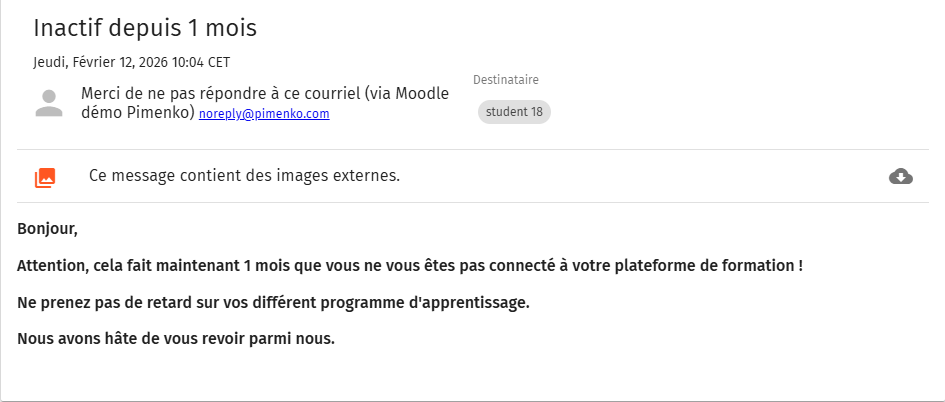
Après avoir créé et activé la notification, vos utilisateurs recevront des notifications emails ou via le système de Moodle comme sur ces exemples :
Step-by-step guide to set up a notification #
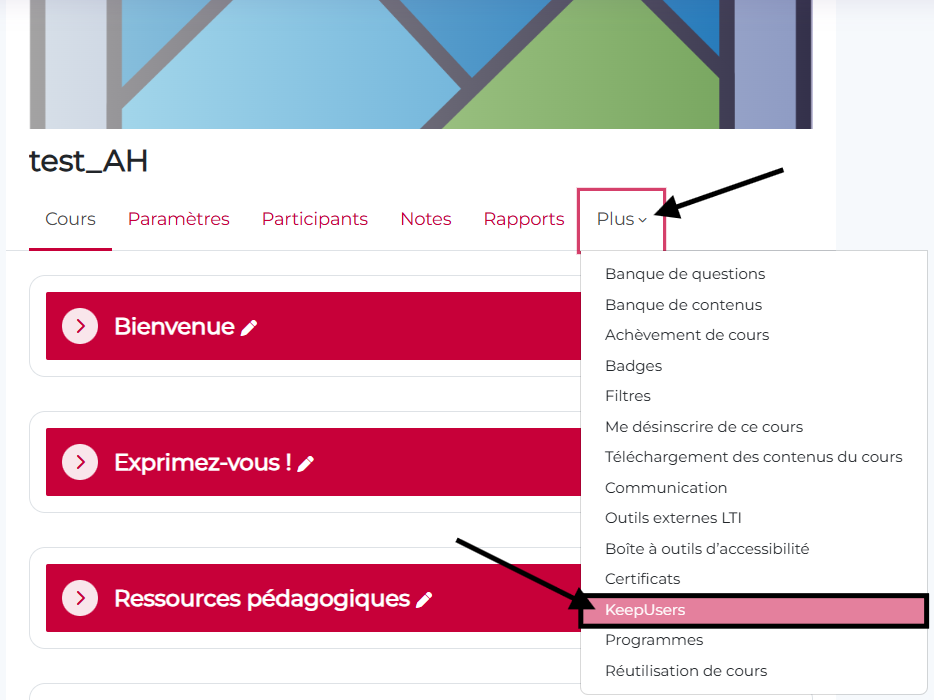
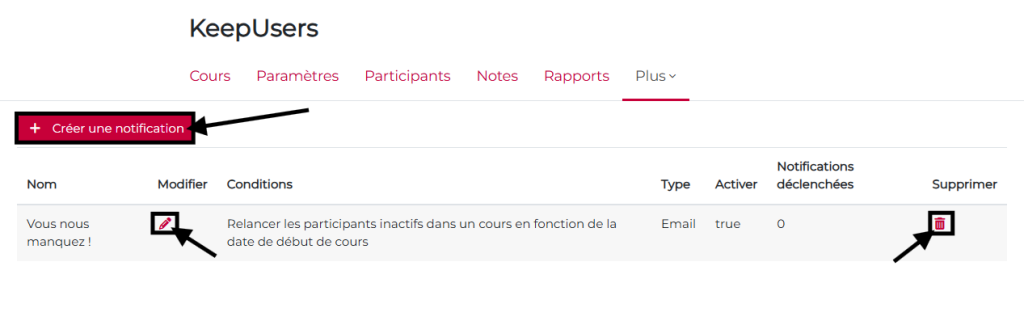
Once the plugin has been installed on the site, a new feature becomes available in the sub-menu on the home page of all courses.
- You must give the notification a name. In the case of an email format, this is the name that will appear in the subject line of the email sent to the participant.
- You can choose to enable or disable reminders. To avoid errors during the preparation phase, we recommend leaving the notification switched off. You can activate it once you are sure of the criteria and content of your message.
- You can choose the type of notification: by email, via the website’s internal notification system (the bell icon at the top of the page), or both.
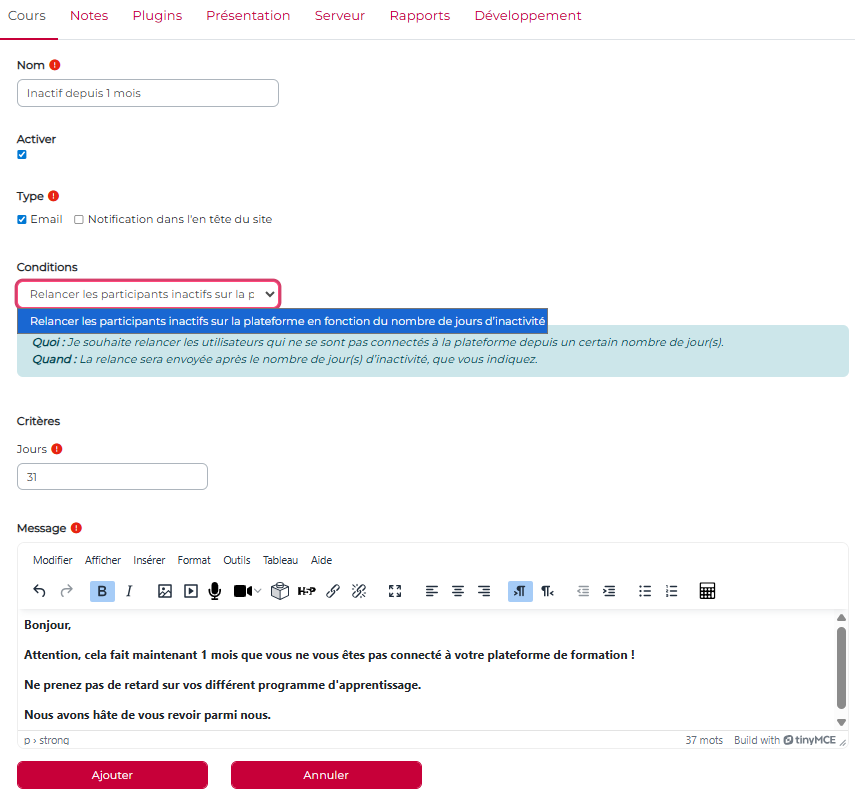
Finally, you need to select a condition and set the criteria that will trigger the reminder.
Here are the various conditions and an explanation of how they work:
| Types of conditions | Who: I’d like to follow up… | When: the reminder will be sent… |
|---|---|---|
| Remind participants who are inactive in a course, based on the course start date; | … participants who have enrolled in or been enrolled on the course but have never logged in; | … after a number of days that you specify, starting from the course start date set in the course settings. |
| Re-engage inactive participants in a course based on their enrolment date; | … participants who were enrolled in the course but never logged in; | … after a number of days that you specify, starting from the date of registration. |
| Reach out to inactive participants based on their progress in the course; | … participants who have reached a certain level of progress and have not logged back into the course; | … after a number of days that you specify based on the date of the user’s last login. |
| Follow up with participants at a specific stage and on a specific date; | … participants who have reached a certain level of progress by a date of my choosing; | … on the date you specify. |
Practical examples for your lessons #
I want to follow up with participants who signed up for the course but have never logged in. #
Case study: Around a hundred students have since enrolled on an open-access course.
Benjamin is running this course for the second time. During the first session, he realised that many of the students who had enrolled never logged into the course.
For this new term, he wants to set up an automated reminder for these inactive students. He would like this reminder to be sent one day after the course begins.
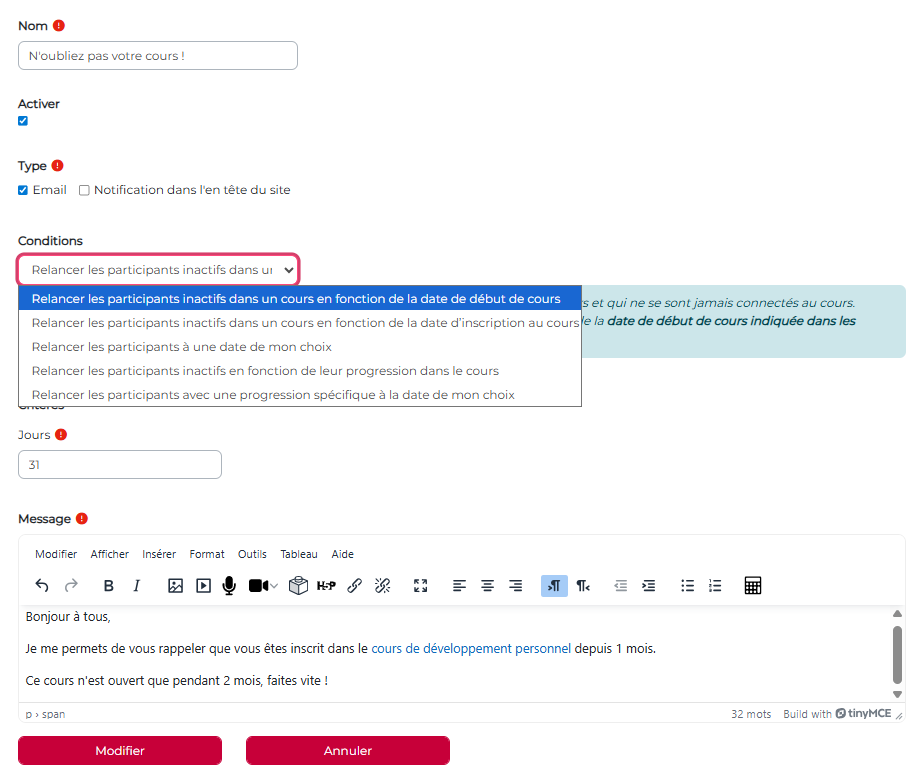
Results #
In the days that followed, 30% of students who had never logged in before joined the course. That really cheers Benjamin up!
I want to send a notification to users with specific progress details on a specific date. #
Case study: Clément is a trainer and runs several management courses for a training organisation. He knows that towards the end of the year, he needs to provide more support – and even encouragement – to ensure that participants complete the course.
To make things easier, he wants to set up an automated system to send a notification to learners who have not completed the course three days before it ends.
He schedules a notification with settings relating to progress and a specific date:
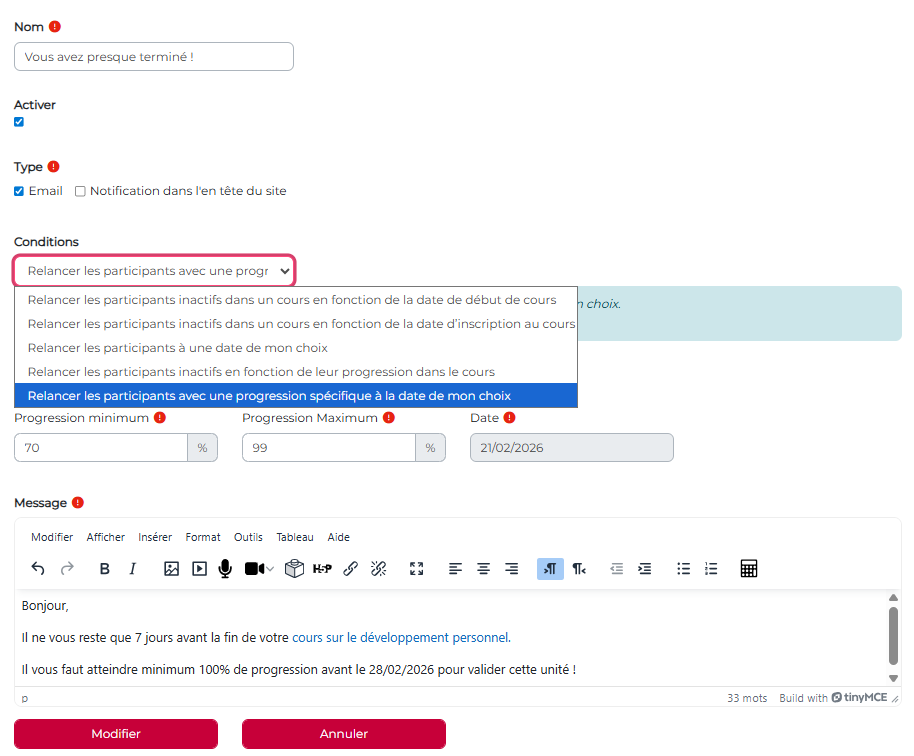
Results #
He has noticed an increase in the number of learners who had not completed the course in the last few days.
I want to send a notification to inactive participants based on several criteria: the date they enrolled on the course, their progress level and the number of days they have been inactive. #
Case study: Hanh teaches languages. She runs an online Vietnamese course in which she has noticed that some participants are struggling to get started.
She wants to send a notification specifically to those participants who are making little progress in the course and who have not logged in for a week.
Hanh is going to set up a notification that will trigger an automatic reminder.
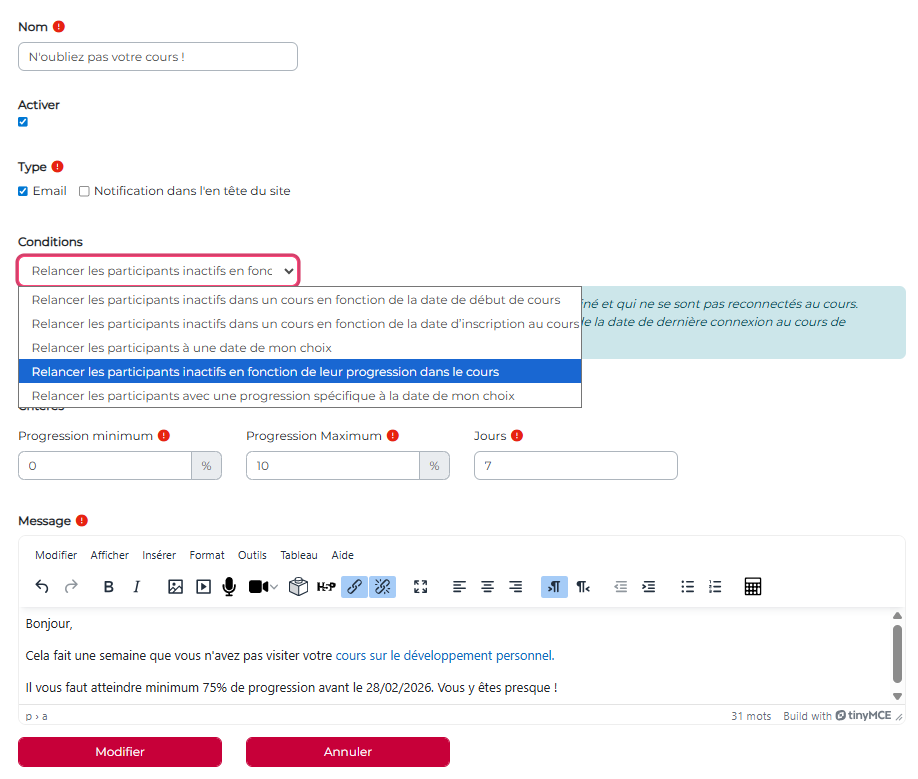
Results #
Hanh notes that some of the participants who were having difficulty getting started with the course are now catching up with the rest of the training group. She has decided to contact the few participants who did not respond to this automated reminder individually and directly.
Pleased with the outcome of this notification, Hanh creates another one with progress targets ranging from 10% to 25%, changing the message to encourage the other participants.
I want to send a site-wide notification using my administrator role. #
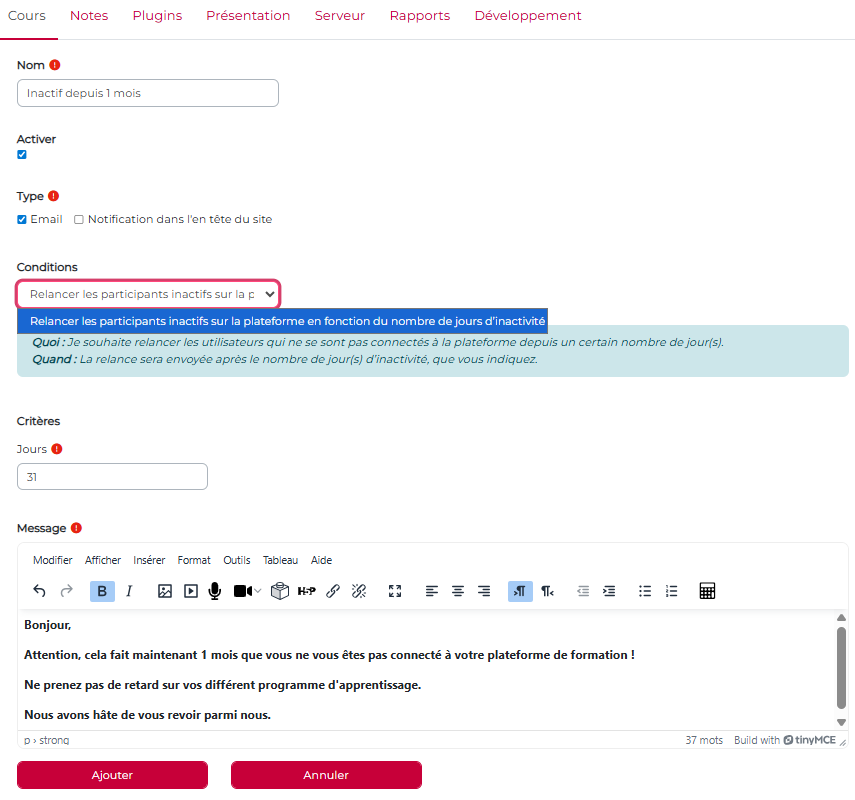
The KeepUsers plugin is available at both course level and platform level.
Go to the ‘Site Administration’ page and then to the ‘Courses’ tab: you will find a KeepUsers link there.
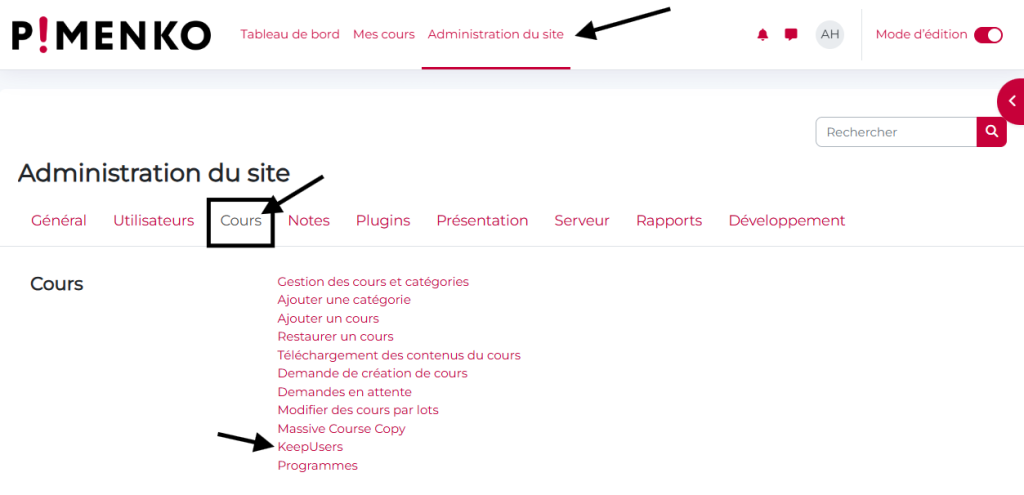
You can set up notifications based on criteria such as the number of days of inactivity on the platform.
For example, you can send a reminder to users who haven’t logged in for a month.
Conclusion #
There you go – it’s as simple as that. With just a few minutes of setup, you can send automatic notifications to the right people at the right time, thereby boosting participation and engagement among your course participants.


