- Overview
- Step-by-Step Guide to Using the KeepUsers Plugin in Your Courses (Teacher Role Required)
- Real-world use cases
- For your classes
- Reach out to participants who have registered for the course but have never logged in.
- Send a notification to users with specific progress information on a specific date.
- Send a notification to inactive participants based on several criteria: registration date, progress level, and number of days of inactivity.
- At the site level (as an Administrator)
- For your classes
- Conclusion

A plugin for notifications and automatic reminders to boost participant engagement in your training courses!
Overview #
Plugin Information #
- Official plugin name: local_keepusers
- Developers: Pimenko Team
- Version: Moodle 4.0, Workplace 4.0, and later versions
Do you have any questions or want to learn more?
In an online training course, it may be necessary to send notifications to participants to encourage them to continue their learning. With the “Keepusers” plugin, you can send a personalized notification to a user in two ways:
- Regarding the course (this applies to all course participants):
- Based on the number of days of inactivity specified for the course or a specific date
- Depending on the participants’ progress in the course
- Based on the number of days of inactivity in the course and a certain level of progress achieved
- At the system level (affects all users):
- Based on the number of days of inactivity on the platform
- On a given date
Key Features at a Glance #
- Automatic notifications for learners at the course level or at the site level for the administrator;
- Select the type of notification: send an email or a notification via Moodle’s internal notification system (the notification bell in the site header);
- Selection of the conditions and criteria that trigger the notification: progress, duration of inactivity, date;
- Reminder content is fully customizable with text, images, videos, links, etc.
How does it work? #
KeepUsers is a “local” plugin. When the criteria you have set are met, a notification is automatically sent to the relevant participants.
Encouragement, congratulations, reminders: You can create notifications that are sent automatically and tailored to a specific audience to boost engagement in your courses!
A notification consists of:
- a condition that targets a specific audience (who?)
- criteria (when?) for triggering the sending of the notification. The criteria vary depending on the selected condition.
- a message containing the follow-up content (text, image, audio, video, etc.)
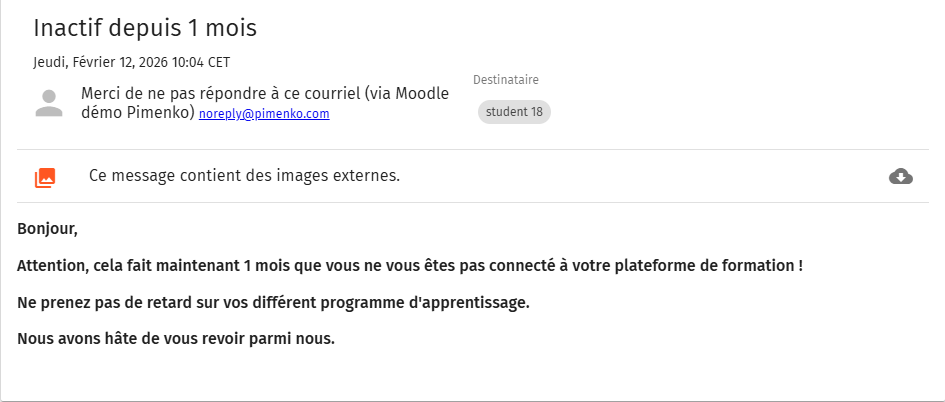
After creating and enabling the notification, your users will receive notifications via email or through the Moodle system, as shown in these examples:
Step-by-Step Guide to Using the KeepUsers Plugin in Your Courses (Teacher Role Required) #
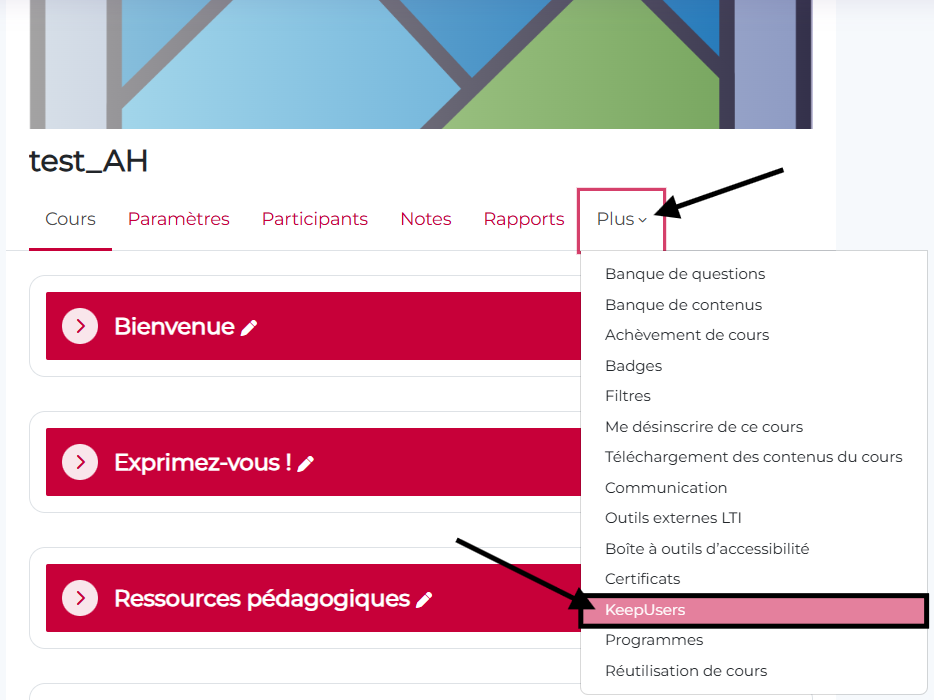
Once the plugin is installed on the site, a new feature becomes available in the submenu on the home page of all courses.
- Step 1. From the “More” menu, click the “KeepUsers” link.
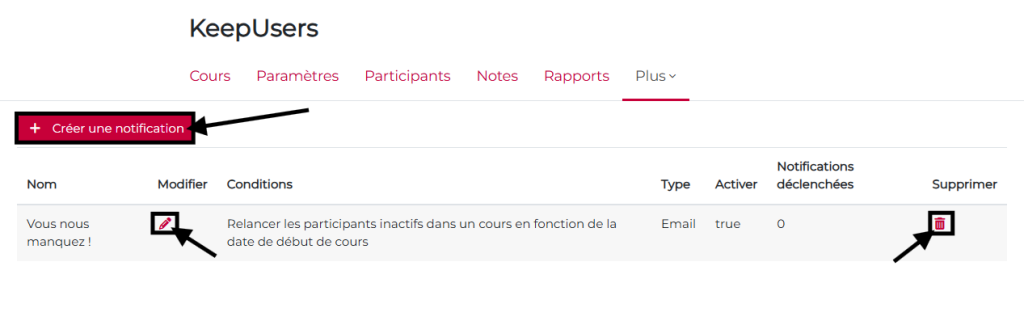
- Step 2. The new page displays notifications that have already been created. It also lets you add, delete, or edit notifications. To add a notification, click the “+ Create a notification” button:
- Step 3. Configure the notification.
- You must give the notification a name. For an email format, this is the name that will appear in the subject line of the email sent to the participant.
- You can choose to enable or disable the reminder. To avoid errors during the preparation phase, we recommend leaving the notification turned off. You can enable it once you’re sure of the criteria and content of your message.
- You can choose the type of notification: by email, through the site’s internal notification system (the bell icon at the top of the page), or both.
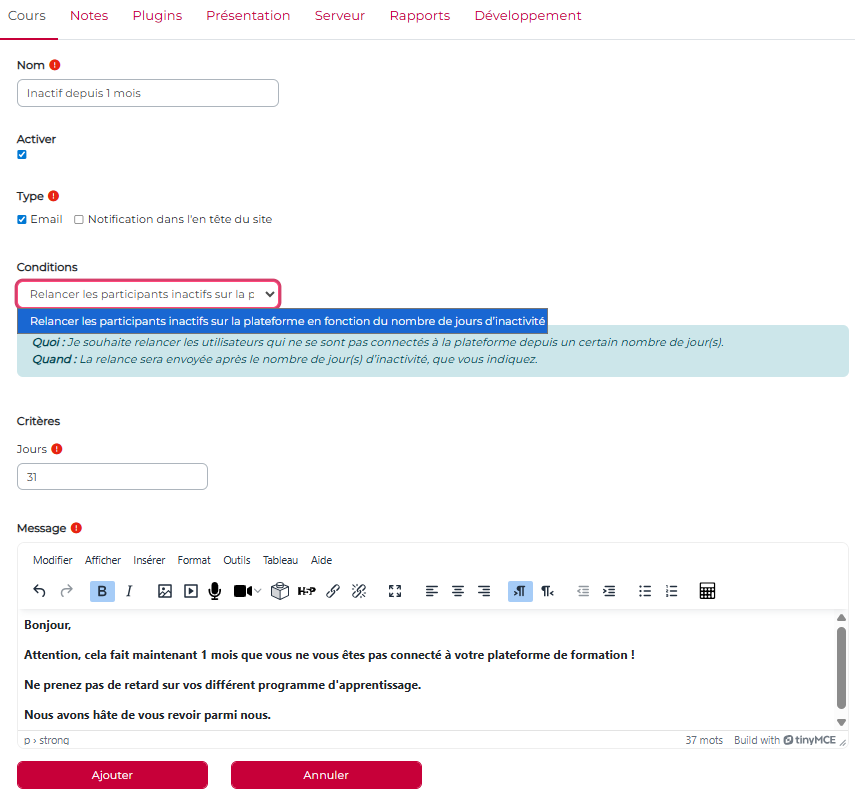
Finally, you need to select a condition and configure the criteria that will trigger the follow-up.
Here are the various conditions and explanations of how they work:
| Types of Conditions | Who: I’d like to follow up… | When: The follow-up will be sent… |
|---|---|---|
| Re-engage inactive participants in a course based on the course start date; | … participants who have enrolled or have been enrolled in the course but have never logged in; | … after a number of days that you specify, starting from the course start date listed in the course settings. |
| Reach out to inactive participants in a course based on their course enrollment date; | … participants who were enrolled in the course but never logged in to the course; | … after a number of days that you specify, starting from the participants’ registration date. |
| Reach out to inactive participants based on their progress in the course; | … participants who have reached a certain level of progress and have not logged back into the course; | … after a number of days that you specify based on the date of the user’s last login. |
| Follow up with participants using a specific plan and on a specific date; | … participants who have reached a certain level of progress by a date of my choosing; | … on the date you specify. |
Real-world use cases #
For your classes #
Reach out to participants who have registered for the course but have never logged in. #
Case Study: About 100 students have enrolled in an open-access course since then.
Instructor Benjamin is teaching this course for the second time. During the first session, he realized that many of the enrolled students never logged in to the course.
For this new session, he wants to set up an automated follow-up for these inactive students. He would like this reminder to be sent 1 day after the class begins.
- Step 1: He names his reminder and then selects “Remind inactive participants based on the course start date.”
- Step 2: Benjamin wants to follow up with learners who haven’t logged in at all one day after the course start date. He enters 1 in the “Number of days after the start of the course” field.
- Step 3: He writes a message to remind these students that the course has started.
- Step 4: He then checks to make sure the “Enable” box is checked before clicking the “Add” button.
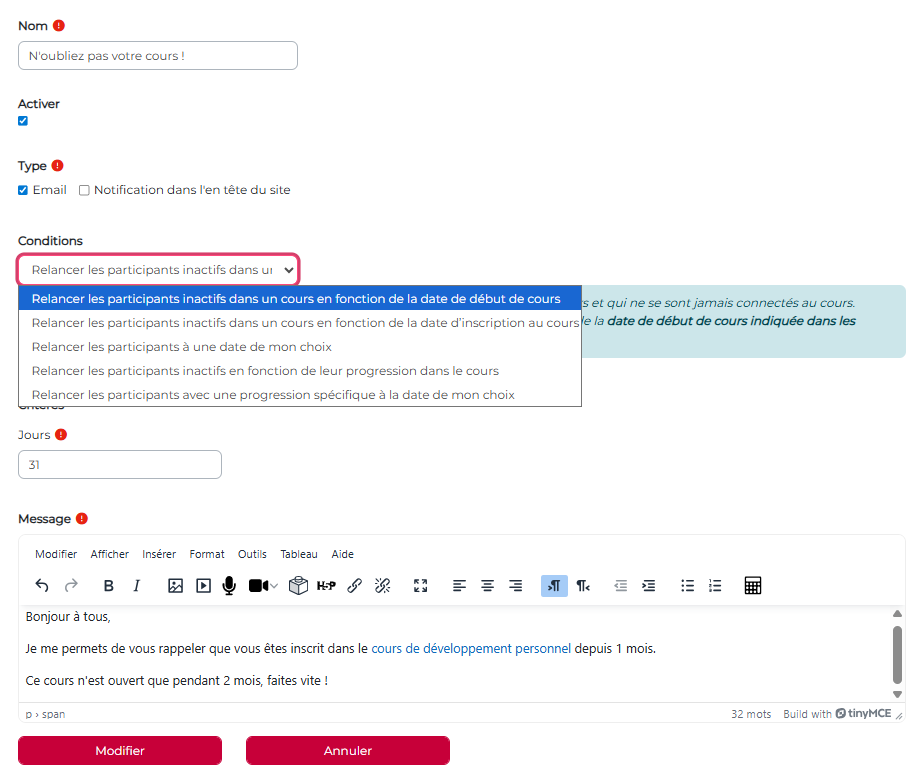
Result: In the days that followed, 30% of the students who had never logged in joined the course. That puts a smile back on Benjamin’s face!
Send a notification to users with specific progress information on a specific date. #
Case Study: Clément is a trainer who leads several management courses for a training organization. He knows that toward the end of the year, he needs to provide more follow-up—and even encouragement—to help participants finish the course.
To make things easier, he wants to automate the sending of a notification to learners who have not completed the course three days before it ends.
He schedules a notification with settings related to progress and a specific date.
- Step 1: He names his follow-up campaign and then selects the condition “Follow up with participants using a specific sequence on the date of my choice.”
- Step 2: Clément decides to target those who have made at least 70% progress but have not completed the course (i.e., progress of less than 99%). It specifies these values for the progress criteria. Then he adds the date: 12/21/2022, which is 3 days before the end of the course.
- Step 3: He then writes the message that will be sent automatically to participants based on the criteria.
- Step 4: He checks to make sure the “Enable” box is checked before clicking the “Add” button so that the notification becomes active immediately.
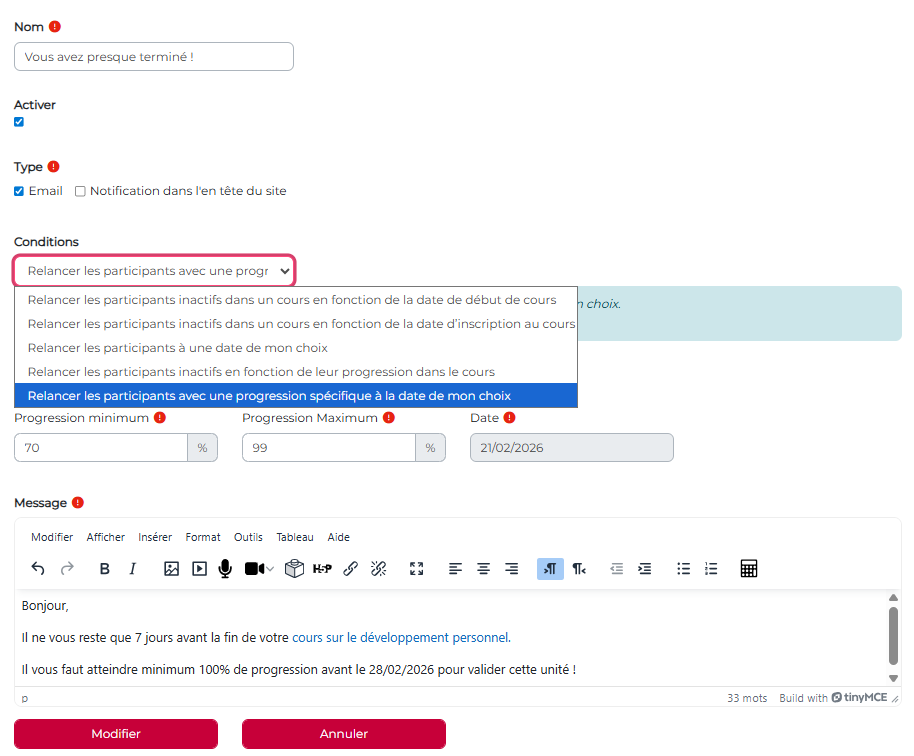
Result: He observed an increase in the progress of students who had not completed the course in the previous few days.
Send a notification to inactive participants based on several criteria: registration date, progress level, and number of days of inactivity. #
Case Study: Hanh teaches languages. She teaches an online Vietnamese course, and she has noticed that some participants have trouble getting started.
She wants to send a notification specifically to participants who are making little progress in the course and who haven’t logged in for a week.
Hanh will create a notification that will trigger an automatic follow-up.
- Step 1: Hanh names her notification and then selects “Re-engage inactive participants based on their progress in the course.”
- Step 2: Hanh targets participants who have completed less than 10% of the course and who haven’t logged in for 7 days.
She enters 10 for the maximum progression criterion and 7 for the number of days of inactivity. - Step 3: She then writes her message of encouragement and support.
- Step 4: Finally, she makes sure the “Enable” checkbox is checked before clicking the “Add” button.
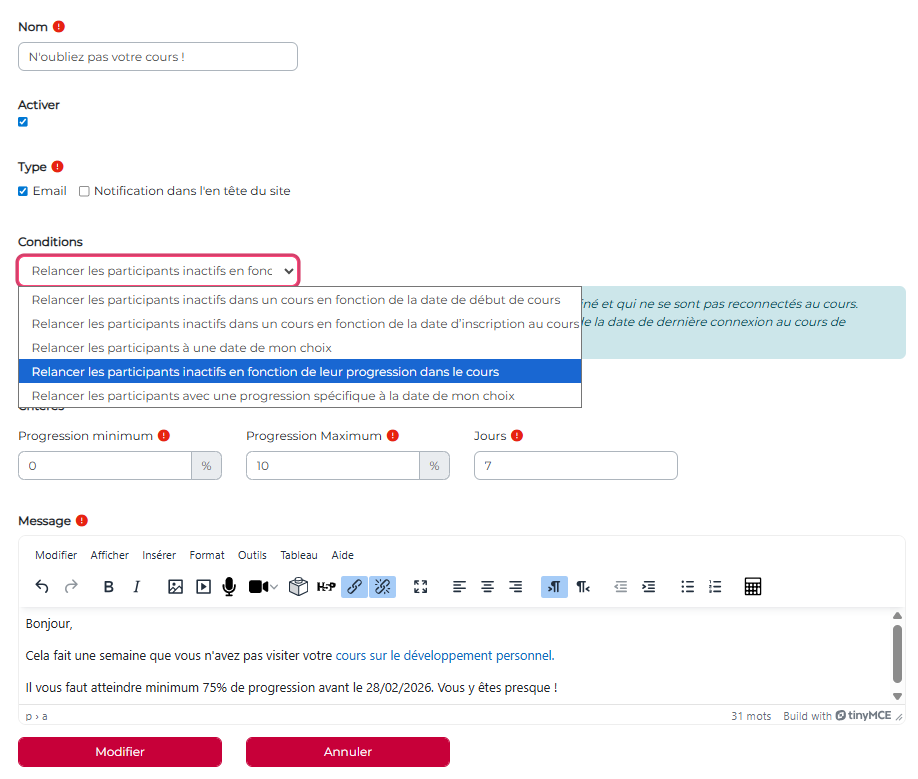
Result: Hanh observes that some of the participants who had difficulty getting started with the course are catching up with the rest of the training group. She decided to contact the few participants who did not respond to this automated reminder individually and directly.
Satisfied with the results of this notification, Hanh creates another notification with progress targets ranging from 10% to 25%, modifying the message to encourage the other participants.
At the site level (as an Administrator) #
Send a notification to platform users #
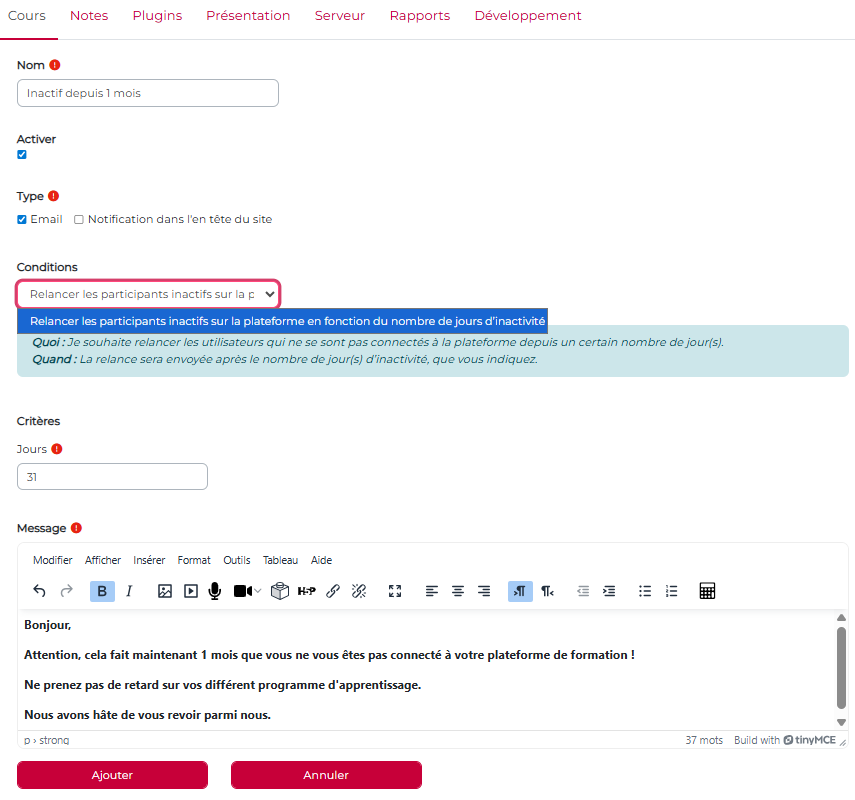
The KeepUsers plugin is available at both the course level and the platform level.
Go to the “Site Administration” page, then to the “Courses” tab: there you’ll find a link labeled “KeepUsers.”
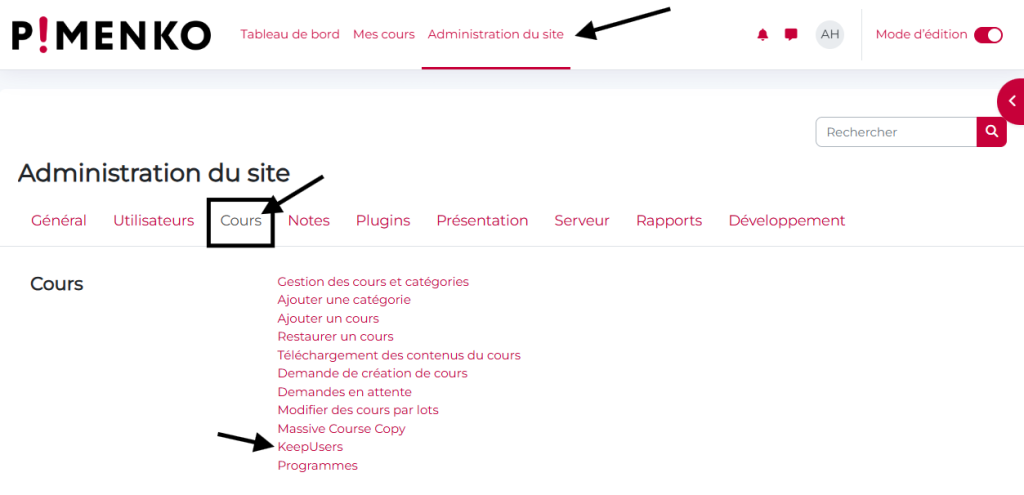
You can set up notifications based on criteria such as the number of days of inactivity on the platform.
For example, you can send a reminder to users who haven’t logged in for a month.
Conclusion #
That’s it—it’s that simple. Just a few minutes of setup lets you send automatic notifications to the right people at the right time, which improves participation and engagement among your course participants.


