
Moodle lets you know whether your learners have completed their activities. Other plugins tell you how many minutes a tab has been open.
LearningTime combines both approaches: as soon as a learner meets the completion criteria for an activity, the time estimated by the instructional team is automatically recorded. It is the educational commitment that counts, not the stopwatch.
Overview #
LearningTime is a “reporting” plugin that allows youto assign an estimated duration to any activity of your choice within a course. As soon as a learner meets the activity’s completion criteria, that time is automatically recorded. This provides you with an accurate and objective assessment of the learning time in your class.
LearningTime, the ideal plugin for Qualiopi, CPF, and OPCO

In short, with the “LearningTime” plugin, you can:
- Proof of Qualiopi / CPF / OPCO
- get an overview of the information about the course participants,
- view the list of activities included in the progression and specify the estimated duration for each activity or resource,
- Access a comprehensive report showing the validated learning time for each learner in the course.
Plugin Information #
- Official plugin name: report_learningtime
- Developer: Pimenko, Sylvain Revenu
- Version: Moodle 4.5 and later.
What sets this plugin apart from other existing Moodle plugins #
Moodle does not natively support time tracking for activities, but it does support the concept of activity completion. This may not be sufficient to track participants based on their progress in relation to the resources and activities to be completed in a course.
LearningTime takes a different, more educational approach: time is tracked only afteran activity is completed. In other words, it’s not the time spent in front of the screen that’s measured, but whether or not an activity is actually completed. So it’s up to you to estimate the time needed for each activity.
This approach has several advantages:
- The data is consistent and not skewed by inactive sessions;
- The instructor/manager maintains control over the scheduled duration of training activities, adjusting them to the difficulty and scope of each activity;
- The report can be used directly to fulfill reporting requirements, such as for certified training programs, the CPF, Qualiopi, training assessments, and more.
Key features at a glance #
An overview of information about the course participants #
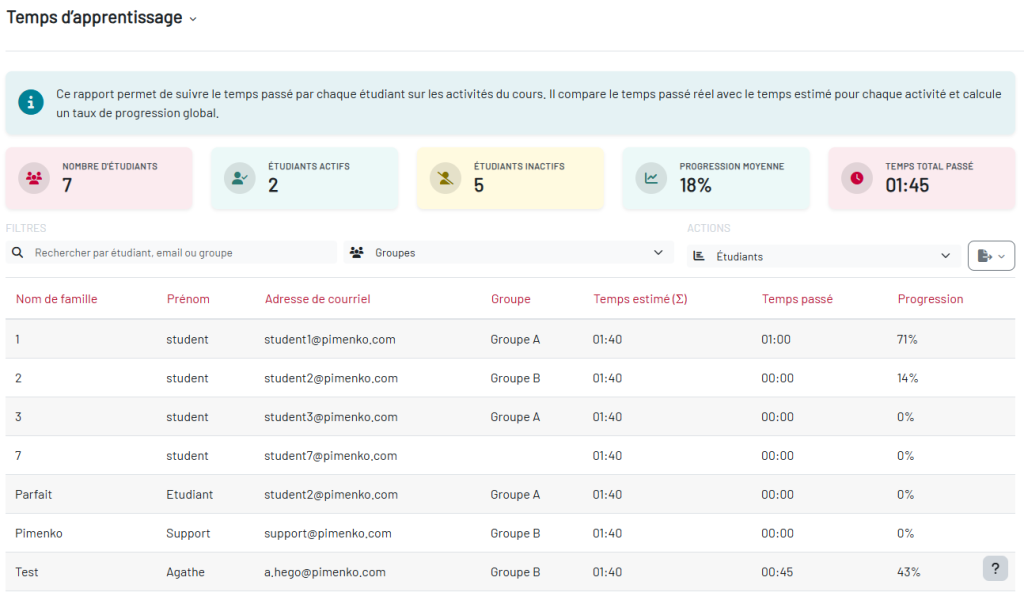
Thanks to the different color blocks available at the very beginning of the report, you can see:
- the overall progress of the participants,
- the number of employed/unemployed people,
- the total duration of training completed by the trainees.
List of activities and estimated duration #
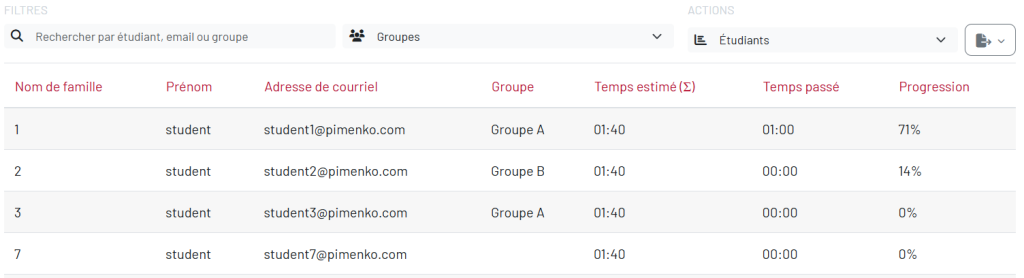
In the “Activities” tab, you’ll find a list of activities for which completion requirements have been set up in the course (for more information, see our guides on this topic: Using Course Completion & How to Set Up Activity Completion). You can choose to assign an “estimated duration” to all activities and resources in a Moodle course. This “expected duration” will be recorded for any learner who meets the defined completion requirements.
The “Students” tab: report on planned and actual durations per student #
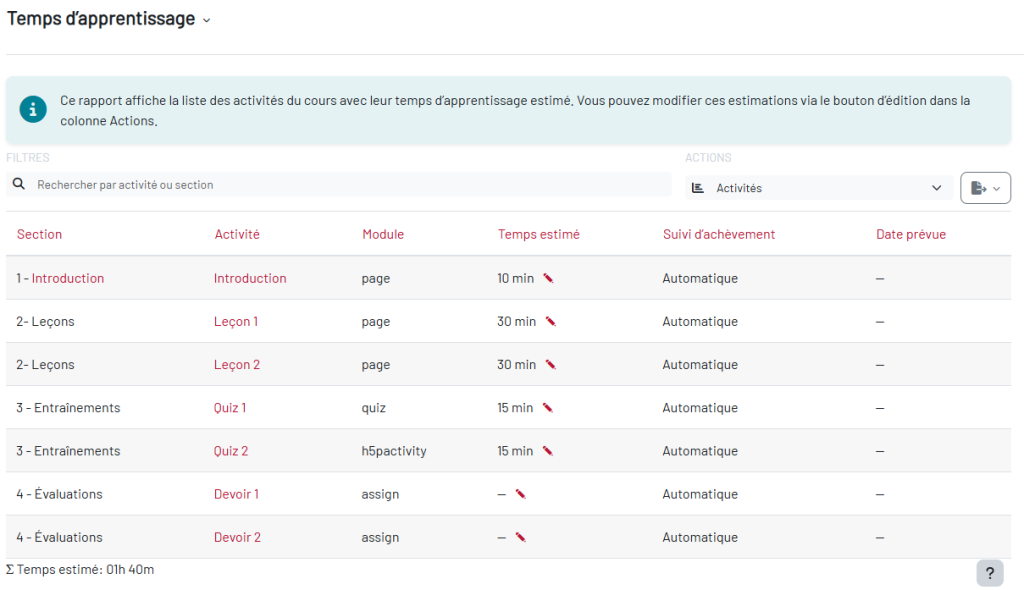
This report provides the following information for each participant:
- their information (last name, first name, email address, group),
- account/registration status (inactive account, inactive registration)
- the total duration estimated by the teaching team for the entire course
- the total time the learner has accumulated through the activities they have completed (referred to as “time completed”)
- its growth rate.

Step-by-step guide to reviewing the report and implementing activity-based learning time #
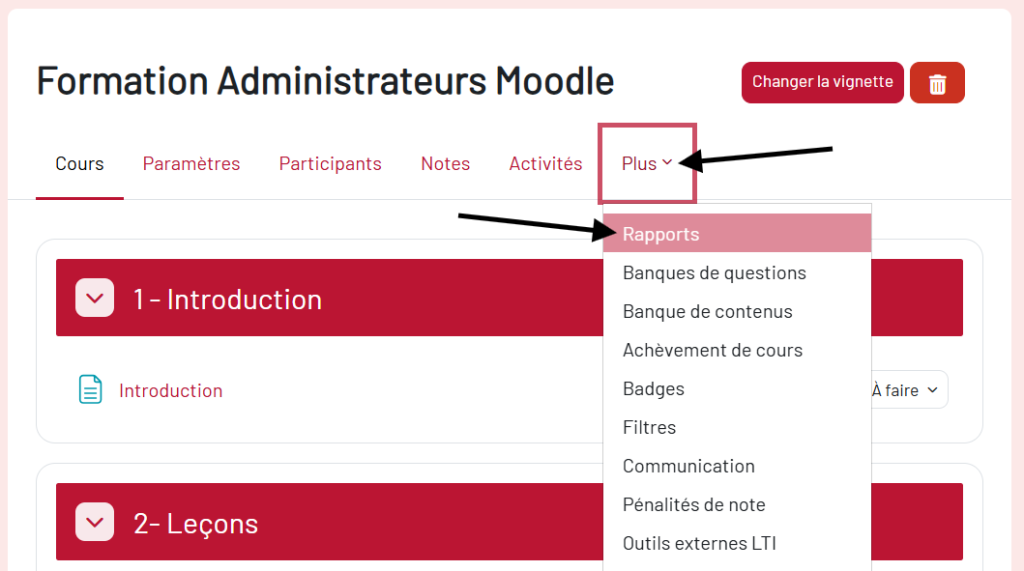
Once the plugin is installed on the site, the “Learning Time” tab appears in the list of available reports for each course.
Step 1. Go to the course of your choice, then tothe “Reports” tab
Step 2. Click “Training Time. “
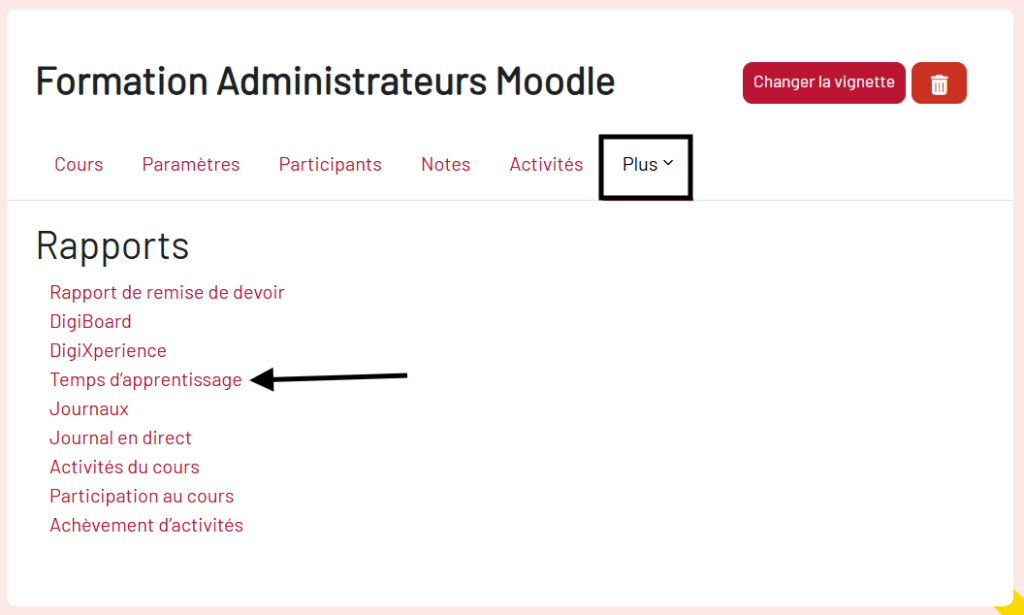
You will be taken to the “Students” tab, which displays all the students enrolled in the course, along with their completion time and progress level.
If multiple student groups have been created, you can filter the list to see only the group of your choice.
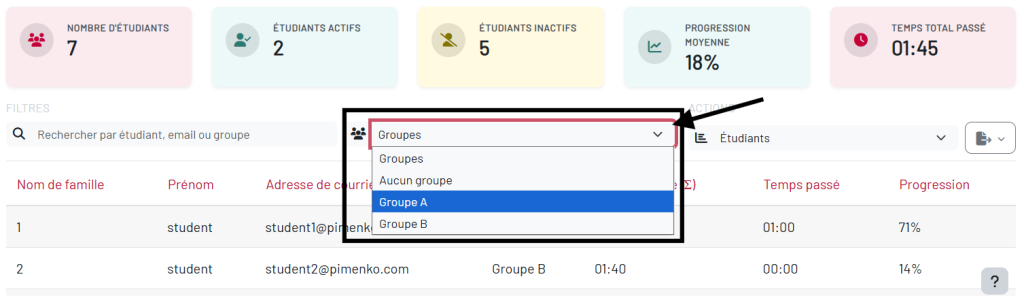
If there are multiple instructors in this course and you are only responsible for one group with the “non-editing instructor” role, only the group you are part of will appear in the report.
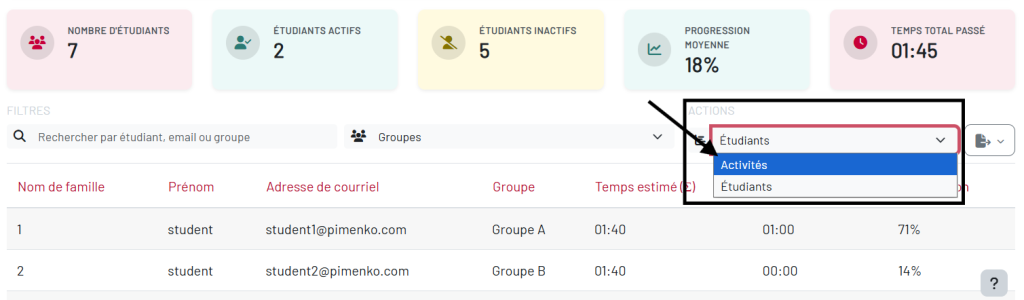
Step 3. Select “Activities” from the drop-down menu.
Step 4. In the “Estimated Time” column, there is an edit button next to each activity that allows you to enter the time of your choice (in minutes). Press the “Enter” key on your keyboard to confirm your entry.
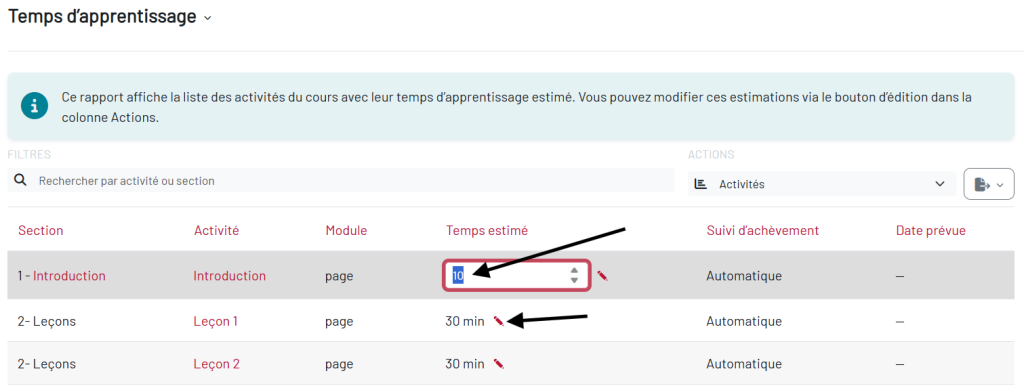
Note: Only “completed” activities are included in this report.
Conclusion #
LearningTime is designed for all educational institutions and training organizations that wish to quantify and highlight the learning time of their students.
Whether you are a Qualiopi-certified training organization or in the process of obtaining certification, an institution subject to CPF and OPCO traceability requirements, or a company looking to measure the actual effectiveness of its e-learning courses, LearningTime offers you a simple, reliable tool that integrates directly with Moodle. No more manual Excel spreadsheets to track your hours: the report is generated automatically, student by student, activity by activity.
In just a few clicks, turn your course into a transparent tracking system that benefits both instructors (who have access to a clear dashboard) and learners (who see their progress highlighted).


