Give your students a lesson plan that’s always accessible in a single document
Course Module Navigation affiche un sommaire complet du cours dans un bloc latéral : toutes les sections, toutes les activités, avec accès direct en un clic et indicateurs d’achèvement. Déjà utilisé sur plus de 1 600 plateformes Moodle dans le monde.
Disponible sur la Moodle Marketplace
🐣 Gratuit pour toujours !
Complete documentation available
Moodle 3.4+
and later versions
+1,600 sites
People use it around the world
100% free
open source on GitHub

Your students don’t know where they stand in the course.
Moodle has included a course index as a native feature since version 4.0. However, this index has two significant limitations: it truncates the names of the activities, making navigation difficult, and it is not available for all course formats. Learners have to scroll down the page to track their progress, and teachers don’t have a quick overview of the content at their fingertips.
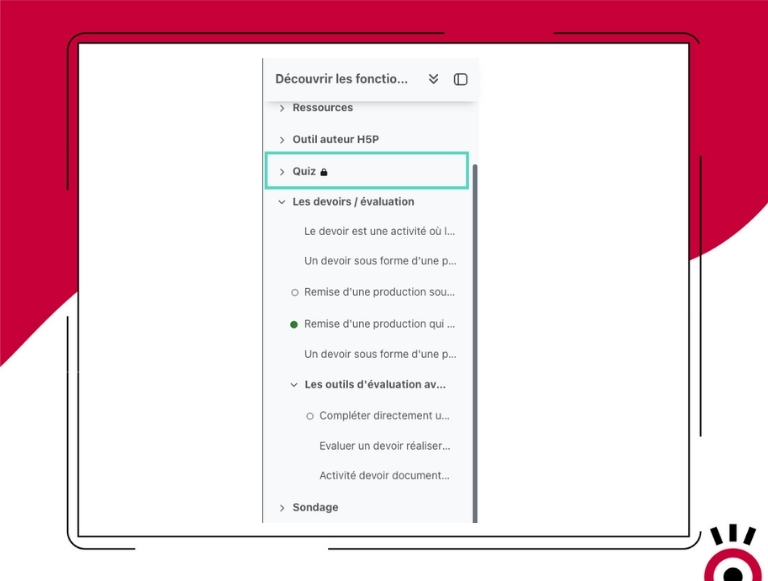
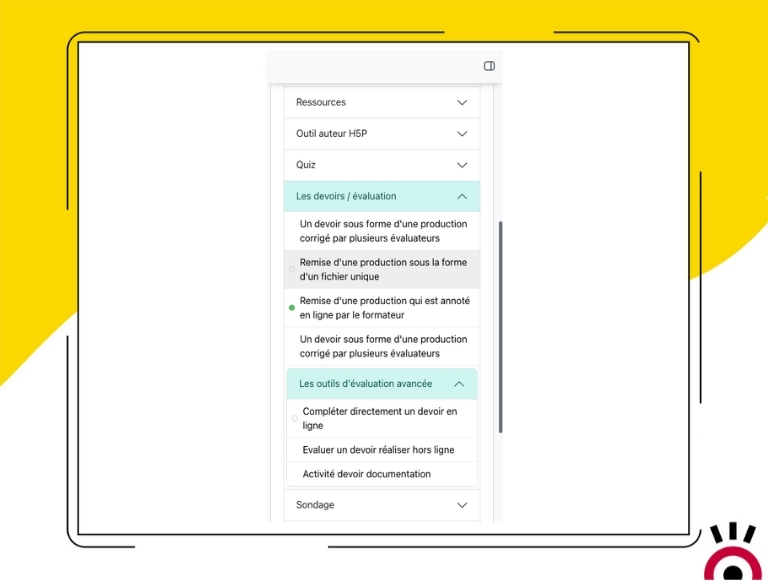
The solution: The Navigation Module displays a complete, easy-to-read map at all times.
Add the block to your course, and your learners will immediately have access to a structured outline that includes the full names of all activities, completion indicators, and direct access to any section or resource—regardless of the course format you’re using.
Everything Course Module Navigation Does
-
Complete Course Outline in One Section
All sections and activities in the course are displayed in a structured sidebar, similar to a table of contents. Learners can see the entire course at a glance.
-
Direct Navigation by Click
Clicking on a section’s name takes you directly to that section. Clicking on an activity opens the corresponding page. No more scrolling.
-
Activity Completion Indicators
If “Activity Completion” is enabled in the course, each activity displays an empty or green circle depending on its status. Learners can track their progress without leaving the module.
-
Activity names displayed in full
Unlike the native index in Moodle 4.0+, which truncates long names, Course Module Navigation displays the full titles. A key difference for training courses with activities that have detailed names.
-
4 configuration options
Customize the block’s behavior to suit your needs: click on the title (to display the menu or go directly to the content), show or hide labels, expand or collapse all sections by default, and display titles alone or along with the activities.
-
Compatible with all course formats
The Course Navigation module functions as a standalone block that can be used with any Moodle course format—including formats such as Tiles that do not include a native course index.
- Accès complet à toutes les fonctionnalités
- Toutes les mises à jour incluses
- Support via tracker
- Compatible Moodle 3.4 & et version suivante
Ready to provide your learners with a clear navigation experience in every course?
Get it on GitHub – freeFAQ
What is the difference from the native course index in Moodle 4.0+?
Two main differences. On the one hand, the native index truncates activity names that are too long—Course Module Navigation displays them in full. On the other hand, the native index is not available for all course formats, whereas this block works with any format.
Does the block display activities with restricted access?
No. Activities with unmet access restrictions are not displayed in the block. Sections with no visible modules are also automatically hidden.
Do I need to enable task completion to use the block?
No. The block works without the task being completed. If you enable this feature, progress indicators (empty or green circles) will automatically appear for each activity.
Can we display the block on all pages of the course, not just the main page?
Yes. To display the Course Module Navigation on all pages (including activities and resources), configure the block’s permissions to display it on “all pages” in the settings.
Is the plugin free?
Yes. Course Module Navigation is an open-source plugin maintained by Pimenko, available for free on GitHub and in the official Moodle repository.