
Centralize all your course activities directly on the Moodle dashboard: visible to each user based on their role, with no configuration required.
Overview #
Notif Plus is a block that transforms your Moodle dashboard into a true notification centre. No more empty, useless dashboards: with this plugin, you can see all the latest updates to your courses since your last visit at a glance. This Moodle block plugin automatically adapts to your profile (learner or teacher) and highlights only what deserves your attention, directly from your dashboard.
In short, with the “Notif Plus” block, you can :
- quickly see what’s changed in all your courses, without having to open them one by one;
- direct access to the activity or resource concerned from each notification ;
- organize notifications according to the five official categories adopted since Moodle 5.1: Assessment, Collaboration, Communication, Resources, and Interactive Content;
- Mark a notification as read (or delete it) to keep your list clear and up to date.
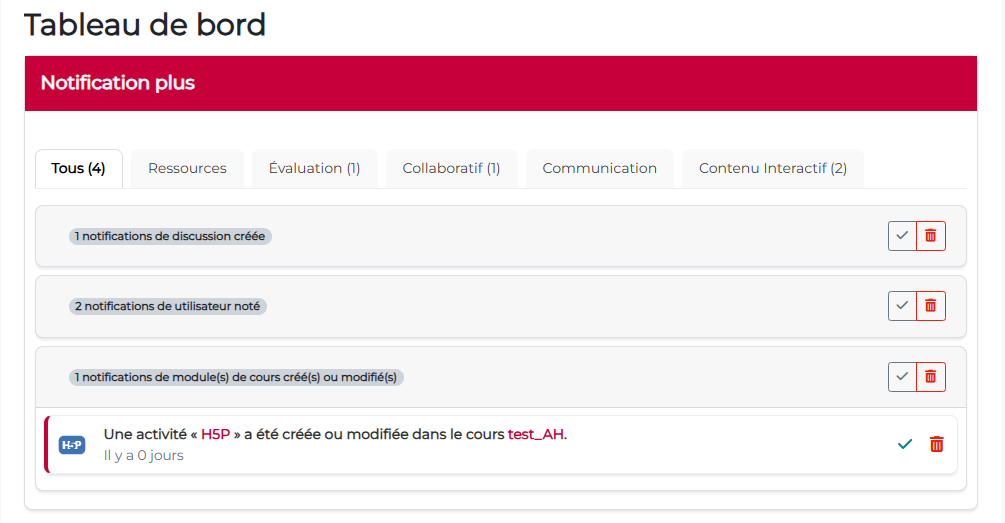
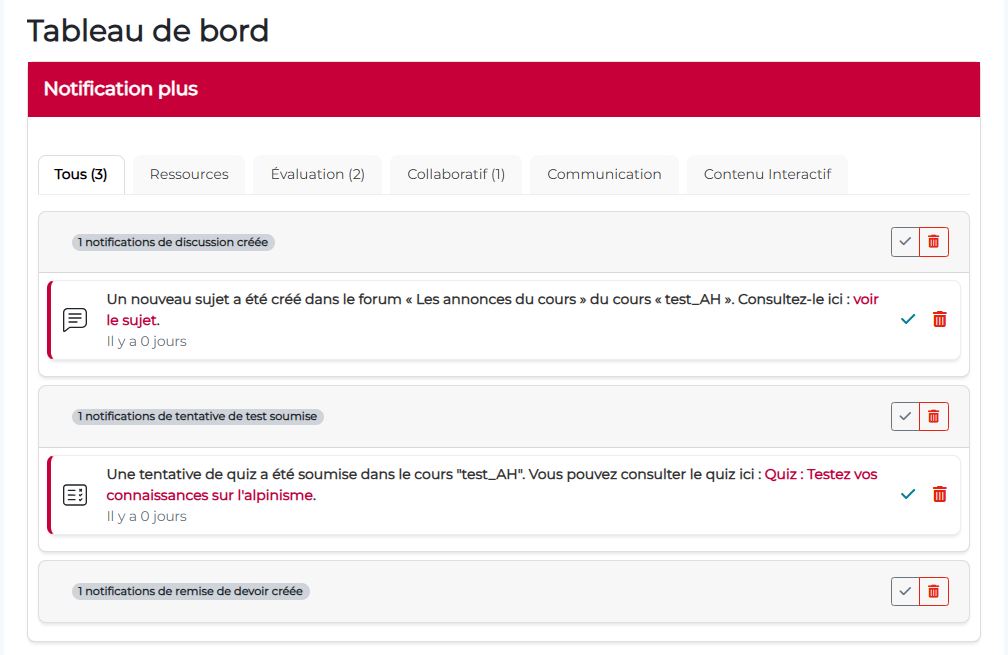
(Click to view notification details)
Plugin Information #
- Official plugin name: block_notifplus
- Developer: Pimenko, Sylvain Revenu
- Version: Moodle 4.5 and later.
What sets this plugin apart from other existing Moodle plugins #
Notif Plus stands out for its simple approach: make the dashboard really useful. Where many solutions are limited to relaying generic alerts or duplicating standard notifications, Notif Plus highlights what really matters to you, at the right time, in a single view.
Its strength lies in three areas:
- Clear centralization: all course news are grouped together in a single block, directly on the dashboard, with immediate access to the activity or resource concerned.
- Personalization by profile: the information displayed is not the same for a learner as for a teacher, in order to remain relevant and avoid noise.
- Consistent classification: notifications are organized according to the 5 official Moodle categories (since 5.1) – Assessment, Collaboration, Communication, Resources and Interactive Content – making them quick and intuitive to read.
Notif Plus also offers practical control on the user’s end: everyone can mark their notifications as read or delete them to keep their list short and up to date.
For teachers, the plugin can also limit notifications to the groups being monitored, to avoid overload when several groups or courses are being managed in parallel.
Key features at a glance #
The “Notif Plus” block displays :
 For all users #
 For all users
 - Real-time notifications of new course activities
- Classification by type of activity (resources, assessments, collaborative activities, etc.)
- Direct access to the activities concerned from the notification
- Individual management options (mark as read, delete)
For learners #
- Resources: New files, pages, books and other course materials
- Assessments: New assignments, tests and assessment activities
- Collaborative activities: New entries in glossaries, wiki pages, forums
- Communication tools: New ads and messages
- Interactive content: New H5P activities and interactive elements
In the other tabs, notifications are sorted by type.
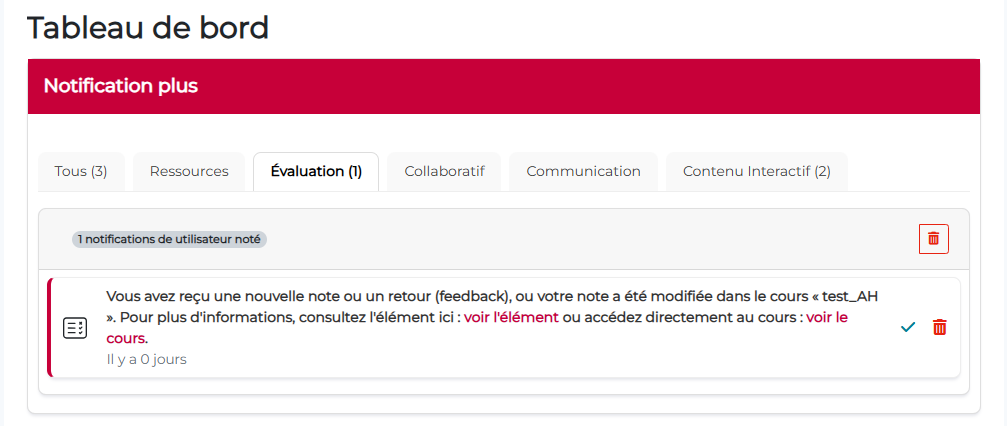
For teachers #
- All learner notifications
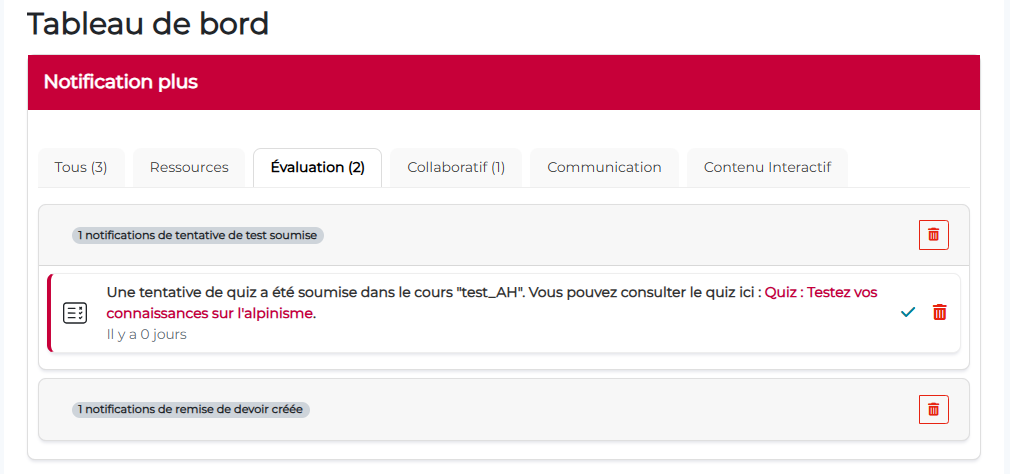
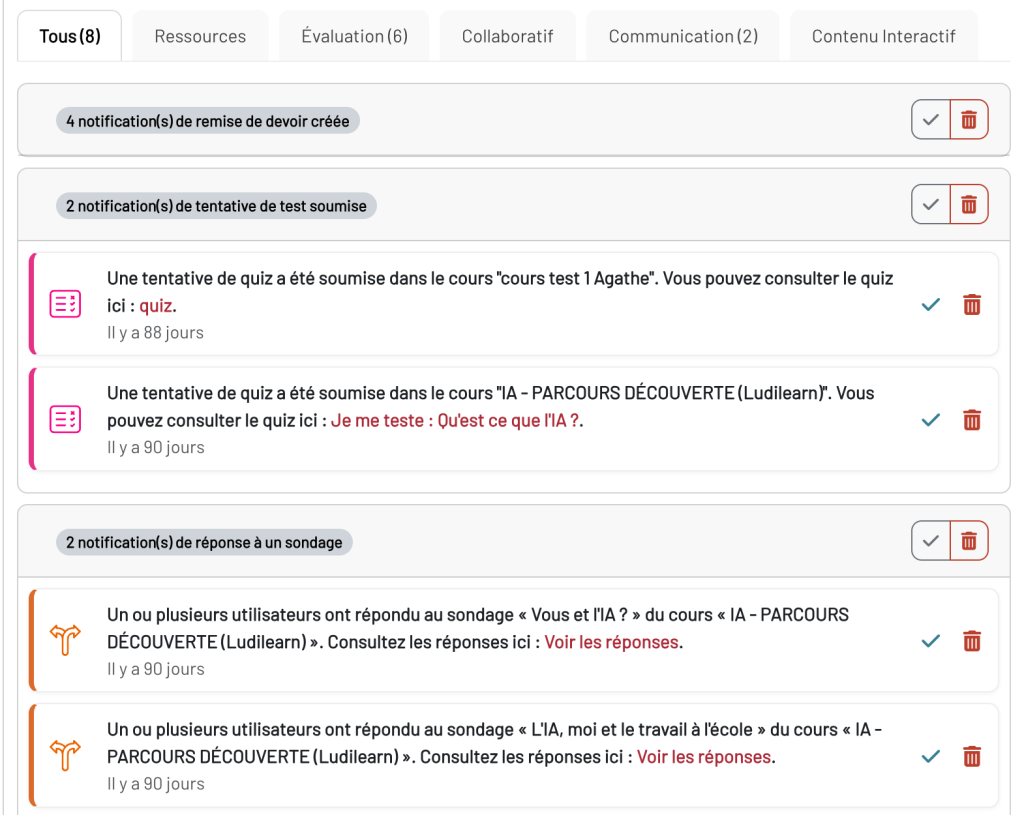
- Homework submitted, test attempts made
- Filter by group: Only posts from students in the groups being taught are displayed
Teacher-specific notifications :
Notification management #
In the tab, both learners and teachers can choose to delete a notification so that it no longer appears, or to “mark it as read” so that the counter resets to 0.


Advantage: Each user decides when a notification is considered handled, without automation that could cause them to miss important information.
Note: Each user manages their own notifications independently. Deleting a notification is personal and does not affect other users.
Step-by-step instructions for using the block #
When the plugin is installed on the site, the “Notif Plus” block appears in the list of available blocks on the dashboard. You can add it to the default dashboard for everyone (if you are an administrator), or let users decide whether or not to add it.
Add the block to the default dashboard #
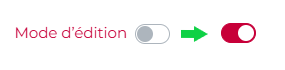
Step 1. Activate edit mode.
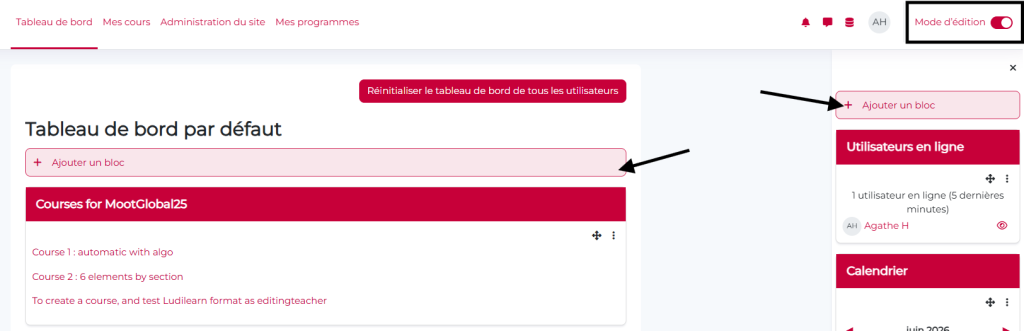
Step 2. Click “Add a block” from the block drawer on the right or below the “Default Dashboard” heading.
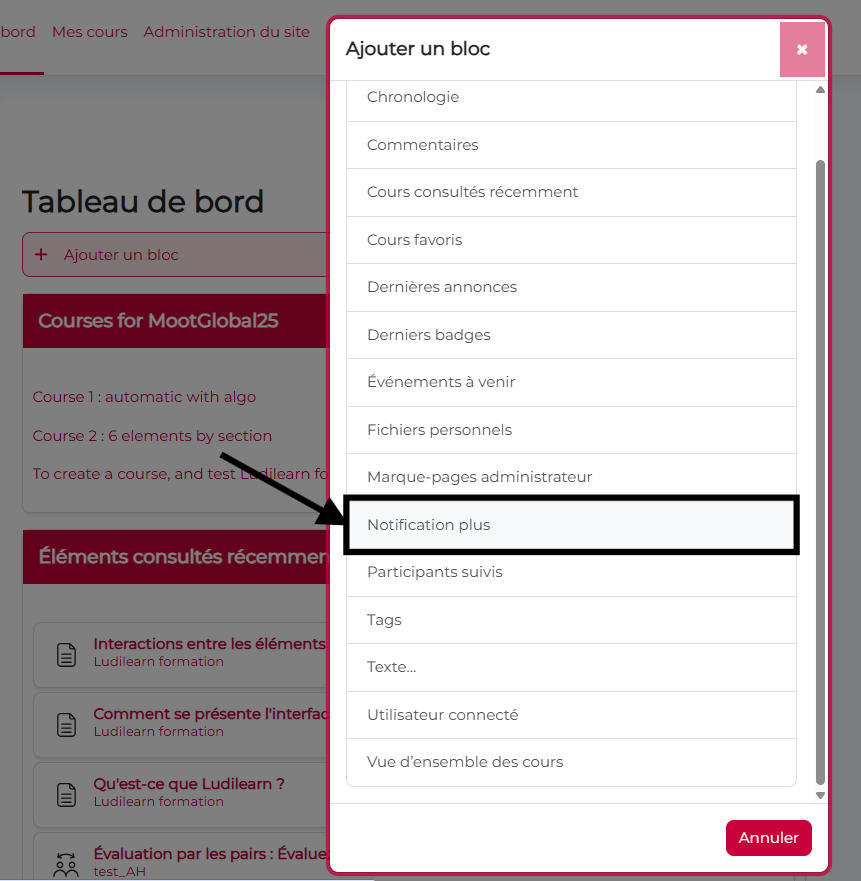
Step 3. Select the “Notif Plus” block in the block selector. The block is added in the designated area.
Step 4. If you have more than one block, you can move it to the desired position.
Step 5. Click the “Reset Dashboard for All Users” button to apply the change to everyone.

Step 6. The block immediately starts displaying notifications relevant to your role and courses.
Note: The block automatically displays notifications based on your course registrations and role (student or teacher). No initial configuration is required.
Block configuration #
As an Administrator, you can choose whether or not to enable an option that allows you to add color to activity icons (these are the default colors set by Moodle for each activity type).

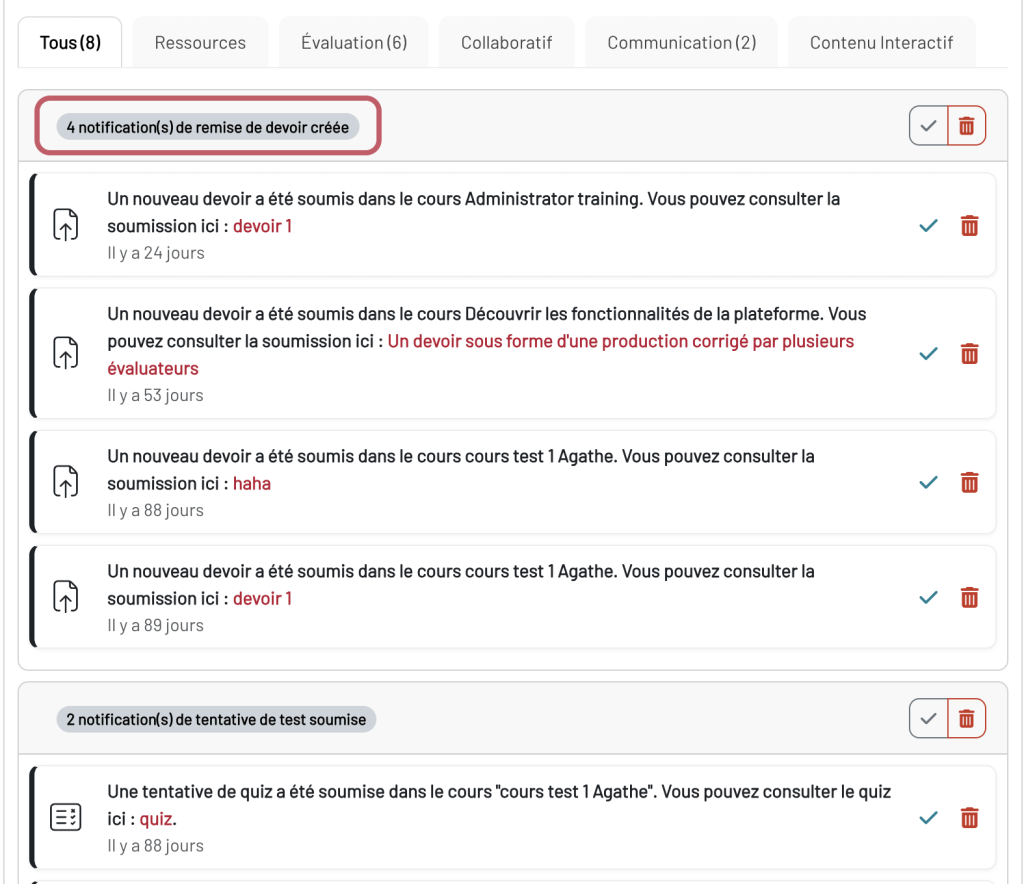
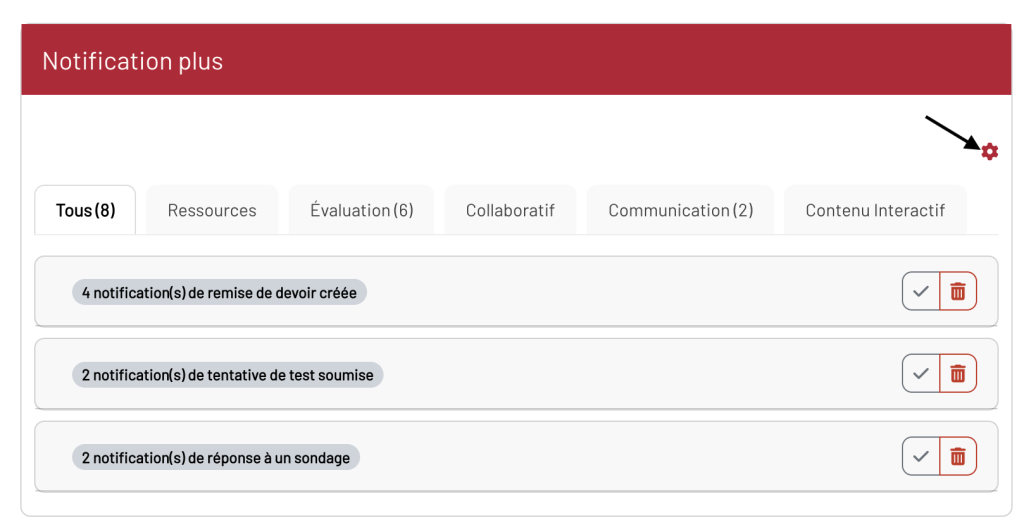
To choose which notifications to display:
- Click the Settings button in the Notification Plus block
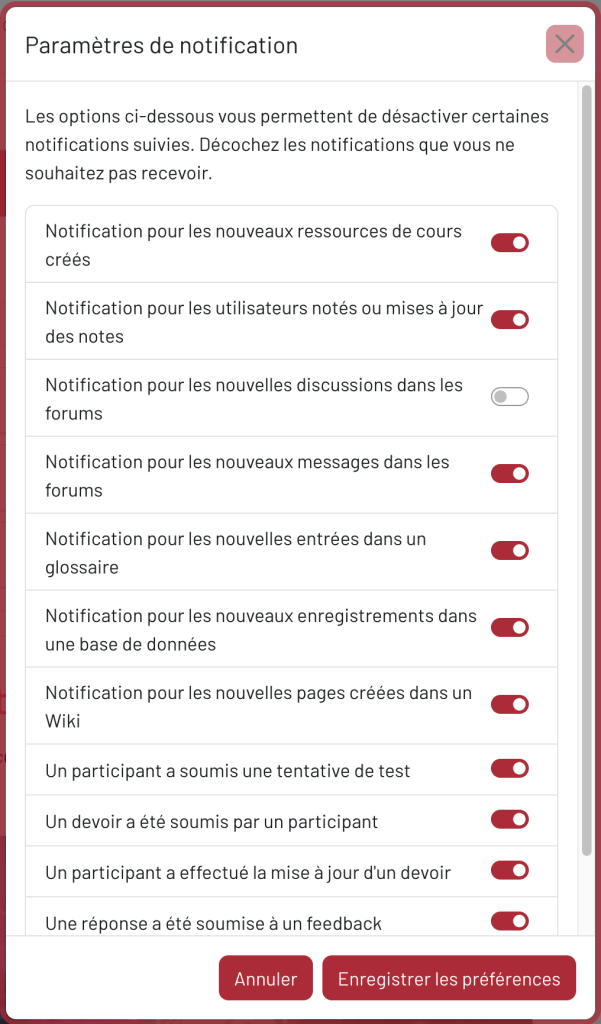
- Select or deselect the notification types you want, then save.
Conclusion #
By providing smart, context-sensitive, and fully customizable notifications, “Notif Plus” significantly improves learner engagement and teacher effectiveness. Immediate visibility of all course updates directly on the dashboard reduces the risk of dropouts by keeping students constantly informed and engaged in their learning journey. For teachers, efficiency is greatly enhanced thanks to real-time tracking of student contributions (submitted assignments, test attempts, forum participation) and an intelligent group-based filtering system that prevents information overload.
Organizing notifications according to Moodle’s five official categories (Assessment, Collaboration, Communication, Resources, Interactive Content) allows users to quickly prioritize actions, while the ability for each user to mark notifications as read or delete them ensures personalized management of their information flow.
In this way, Notif Plus creates a virtuous cycle: learners remain engaged because they are better informed, and instructors become more responsive and have more time for educational follow-up, transforming the Moodle dashboard into a true training management tool.


